Testomat.io Chrome extension
Settings and shortcuts
The Settings tab in the panel header holds six folds. Connection and Failure log start open; click a heading to unfold the rest. Every checkbox and field is committed by Save & validate at the bottom — it also re-checks the connection, then lands you on the Runs tab. The one exception is Appearance, which applies the moment you click it.
Settings are kept per instance: switch to another Testomat.io server and you get that server’s own set.
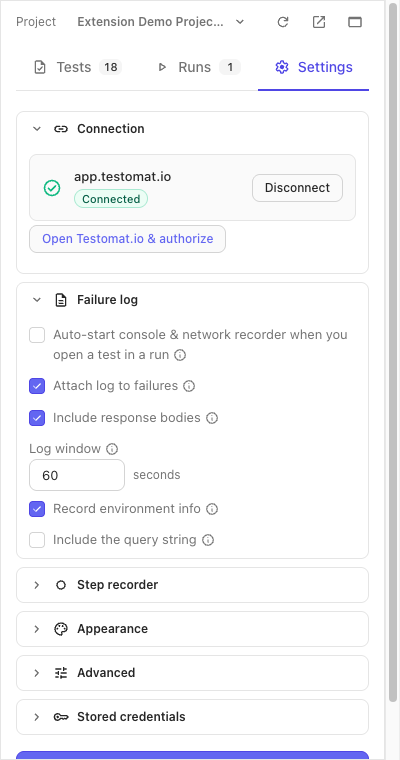
Connection
The card names the host you are connected to, shows the Connected badge (or Project not picked while the first-time setup is half done — token in, no project chosen yet) and offers Disconnect. Authorizing, picking a project and ending the connection are on Connect.
Failure log
What gets recorded, and what leaves the browser, when you mark a test Failed. Details of the recorder itself are on Console & network log.
| Setting | Default | What it does |
|---|---|---|
| Auto-start console & network recorder when you open a test in a run | Off | Rec starts by itself when you open a test in a run, bound to that test, and stops when you leave it. |
| Attach log to failures | On | The recorded log is uploaded and linked on a test you mark Failed. Off skips only that automatic upload — Attach on a single log entry still works. |
| Include response bodies | On | A failed request carries a snippet of what came back, up to 16 KB. Off keeps the request line and writes (body capture disabled) where the snippet would be. |
| Log window | 60 seconds | How much console & network history is kept and attached. Any value from 10 to 600; blank means 60. A number outside the range is refused — Save reports Log window must be between 10 and 600 seconds and nothing is saved. |
| Record environment info | On | Browser, OS, the viewport of the tab under test and its page URL are written onto the run as meta, with every status you set — not only a failure. |
| Include the query string | Off | The recorded URL — and the step recorder’s first Open step — is cut to origin + path, so reset tokens and signed links in a query string stay out of the run. On records it whole. |
Step recorder
| Setting | Default | What it does |
|---|---|---|
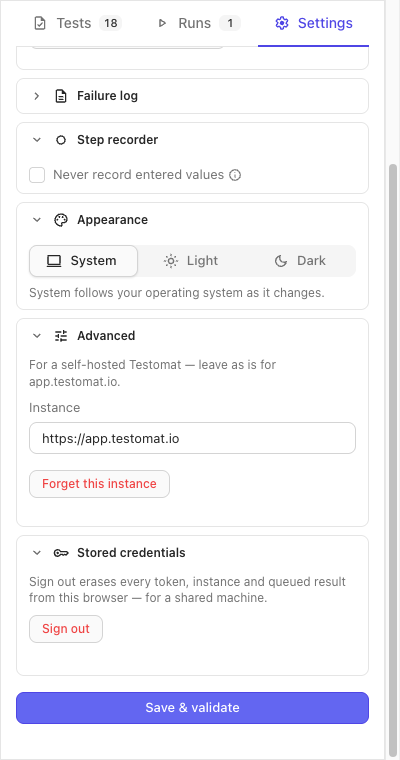
| Never record entered values | Off | Off, the recorder saves what you type into the steps and masks what it recognises as a password, card number, CVV or one-time code. On, every entry reads Type text into the … field — only a password field still says so — and a dropdown choice reads Select an option in the … dropdown. Turn it on when the site under test handles real payment or identity data. See Sensitive values. |
Appearance
System, Light or Dark. The click is the save — no Save & validate needed. System follows your operating system as it changes. The choice belongs to the browser, not to an instance: it holds across projects and servers, applies to the test editor tab too, and survives Sign out.
Advanced
For a self-hosted Testomat.io. On app.testomat.io leave it as it is — the fold stays closed; it unfolds by itself once a self-hosted instance is saved.
- Instance — the server’s
https://URL. HTTP is refused. The authorize link in Connection follows this field. - Pick a saved instance — this dropdown appears once you have saved two or more servers. Picking one loads its saved settings into the form; Save & validate switches the panel to it. A server you hold no token for brings the Access token field back.
- Forget this instance — deletes the saved token, project and preferences of the instance the form points at, after a confirmation. If that is the instance you are on, its restored session, queued results waiting to be sent, recorded steps, captured log, screen recording and unsaved drafts go too, a running recording is stopped, and the panel returns to the connect screen. Other instances are kept.
Stored credentials
Sign out is for a shared machine: after a confirmation it erases every
saved token, instance, history entry, queued result, session, unsaved test
draft, recorded step, captured log and screen recording from this browser,
stops a running recording, and reloads the panel onto the connect screen. The colour
scheme and the side-panel-or-window choice stay. Site access is Chrome’s
own setting for the extension, on chrome://extensions, and is not
touched.
Side panel or window
The header’s Open in window button reopens the panel as a window of its own — tall and narrow, like the side panel — for a second screen or a site that fights the side panel. In that window the same button reads Dock to side panel. The choice is remembered: the toolbar icon opens whichever surface you used last.
Keyboard shortcuts
In the test view, when no field has the focus:
| Keys | Action |
|---|---|
Cmd/Ctrl+Enter |
Passed |
Cmd/Ctrl+U |
Failed |
Cmd/Ctrl+I |
Skipped |
N |
Next still-untested test |
↓ / →, ↑ / ← |
Next / previous test |
Cmd and Ctrl both work on every system. The ? button beside the
test pager at the bottom of the test view opens the same list in the
panel. None of the marks moves you on — that is N.
From any tab, Alt+Shift+R starts or stops a
screen recording of the tab in front; change it on
chrome://extensions/shortcuts.
If it didn’t work
- “Instance and access token are required” — the Access token field is empty for a server the panel holds no token for; authorize and paste.
- “Instance URL must be https://” / “Instance is not a valid URL” — fix the Instance field; the fold opens on the error.
- “Log window must be between 10 and 600 seconds” — the number in Log window is outside the range; nothing was saved, and the field still holds what you typed. Leave it blank for 60.
- “Token rejected by …” — the token is stale for that server; press Open Testomat.io & authorize again and save the new one.
- “This token reaches no projects” — ask for access to a project on that server, then save again.
- “Couldn’t load your projects from …” — the server did not answer; check the connection and save again.
- “Nothing saved for …” — Forget was pressed for a server that was never saved; nothing was erased.
- A warning about the recording after Forget or Sign out — the erase happened, but the console & network recorder or the screen recorder could not be stopped; the warning names which. Restart the browser to be sure the log or the video is gone.