Testomat.io Chrome extension
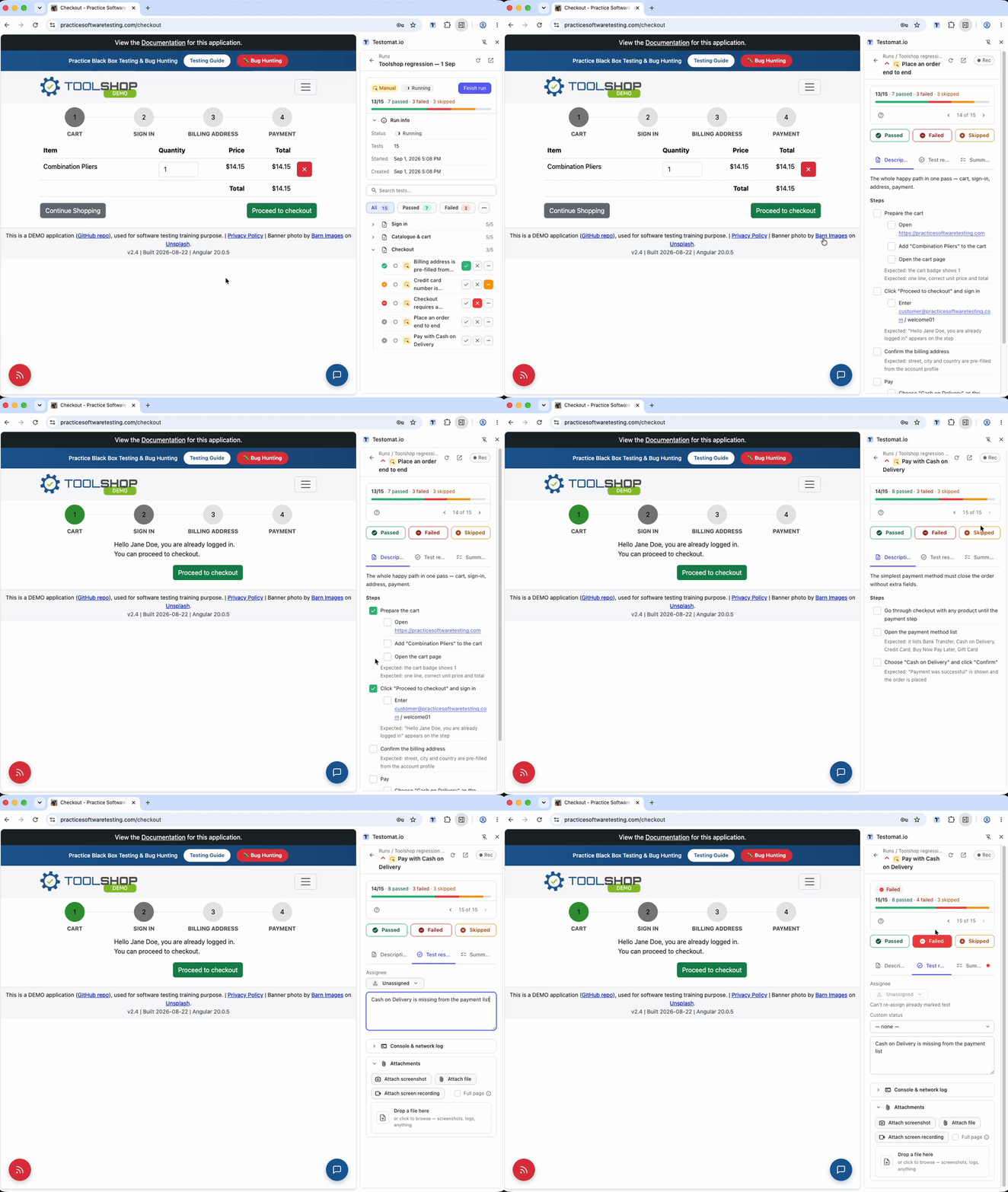
Run Testomat.io manual tests in Chrome’s side panel, next to the site you are testing. Open a run, read the steps, tick them off, mark passed / failed / skipped with a comment — and attach the evidence without leaving the tab: an annotated screenshot, a screen recording, the page’s console & network log. New tests can be written in the panel too, or recorded from your clicks on the page.
Works with app.testomat.io and with self-hosted instances. Coming to the
Chrome Web Store; until then you load it from a folder, once.
Install
- Download the newest zip from
Releases and
unpack it — or
git clonethis repository. - Open
chrome://extensionsand switch on Developer mode (top right). - Click Load unpacked and pick the folder you unpacked — from a clone,
the
extension/folder inside it, not the repository root. - Click the puzzle icon in Chrome’s toolbar and pin Testomat.io.
- Click the pinned icon — the panel opens and asks you to connect.
Chrome 123 or newer. Nothing to build. To update, replace the folder’s contents and press reload (↻) on the extension’s card — your settings and unsent results survive it. Details and pictures: Install and update.
Quick start
- Connect. Press Open Testomat.io & authorize, paste the token it gives you, press Connect, pick your project. → Connect
- Open a run. Runs tab → click a run → click a test.
- Mark it. Tick the steps, press Passed, Failed or Skipped
(with a comment), then the › arrow in the test’s pager (or
Nfor the next untested test). Nothing navigates on its own. → Run a manual run - Attach evidence. In the test’s Attachments fold: Attach screenshot opens an annotator over the page, Attach screen recording records the tab; with Rec on, marking a test Failed attaches its console & network log by itself.
Guide
| Page | Covers |
|---|---|
| Install and update | Load the folder, pin the icon, update without losing anything |
| Connect | Authorize, pick a project, self-hosted instances, basic mode |
| Run a manual run | Runs, steps, statuses, comments, hotkeys, finish, working offline |
| Attach a screenshot | Capture the tab, annotate over the page, full-page shots |
| Attach a screen recording | Record the tab, review and trim, attach |
| Console & network log | Rec: the log that lands on a failed result |
| Create tests | Add by title, write in the editor, parameters |
| Step recorder | Do the flow once, the test writes itself; polish with AI |
| Settings and shortcuts | Every setting with its default, sign out, keyboard shortcuts |
Privacy
The extension uploads only to your own Testomat.io instance. What is stored, what is sent and when — including where Polish with AI goes after that — every permission and why it is needed, and every off switch: PRIVACY.md.
Where to report
Bugs and feature requests go to this repository’s Issues. A useful report says what you clicked, what happened (with the exact wording of any message), your Chrome version, and whether the Basic mode pill was showing. Please leave out API tokens and run URLs you would rather keep private.
For developers
docs/architecture.md— module map, data flows, the permission model, storage keys, known traps.docs/host-handoff.md— signing the panel in from an app that launched the browser (handoff.json).
There is no build step: extension/ runs exactly as it is checked in. The
end-to-end suite lives outside this tree and drives a live Testomat.io
account, so pull requests are verified by maintainers by hand; a few test
seams in the shipped code look unused from here — see architecture §5.3
and leave them alone.
Licence
MIT — see LICENSE. Vendored under extension/vendor/ with their
own licence files: showdown (MIT) and
OverType (MIT); icon paths from
Material Symbols (Apache-2.0); JetBrains
Mono and Fira Mono under the SIL Open Font License (extension/shared/fonts/OFL.txt
and OFL-FiraMono.txt).